SSH into a machine behind NAT
You want a shell on a machine that has no public IP — a box at the office, a Raspberry Pi at home, a server on a carrier-grade-NAT link — and you are on your own laptop, also behind NAT. Neither side can accept an inbound connection. With LRO that is fine: both agents dial out, and you SSH to a local port on your laptop that lands on the remote machine.
-
Confirm SSH is running on the remote machine
On the machine you want to reach, the SSH daemon should be listening locally — by default on port 22. Nothing about it needs to face the internet; LRO connects to it from the same machine.
$ ss -ltn | grep :22 # sshd listening on 127.0.0.1:22 or 0.0.0.0:22The remote machine runs the LRO agent in Client mode and your laptop runs it in Support mode — register both as in your first tunnel if you have not yet.
-
Add the SSH endpoint on the client agent
In the panel, Endpoints → Create endpoint. Pick the client agent (the remote machine), name it e.g. Office SSH, and set target
127.0.0.1and port22.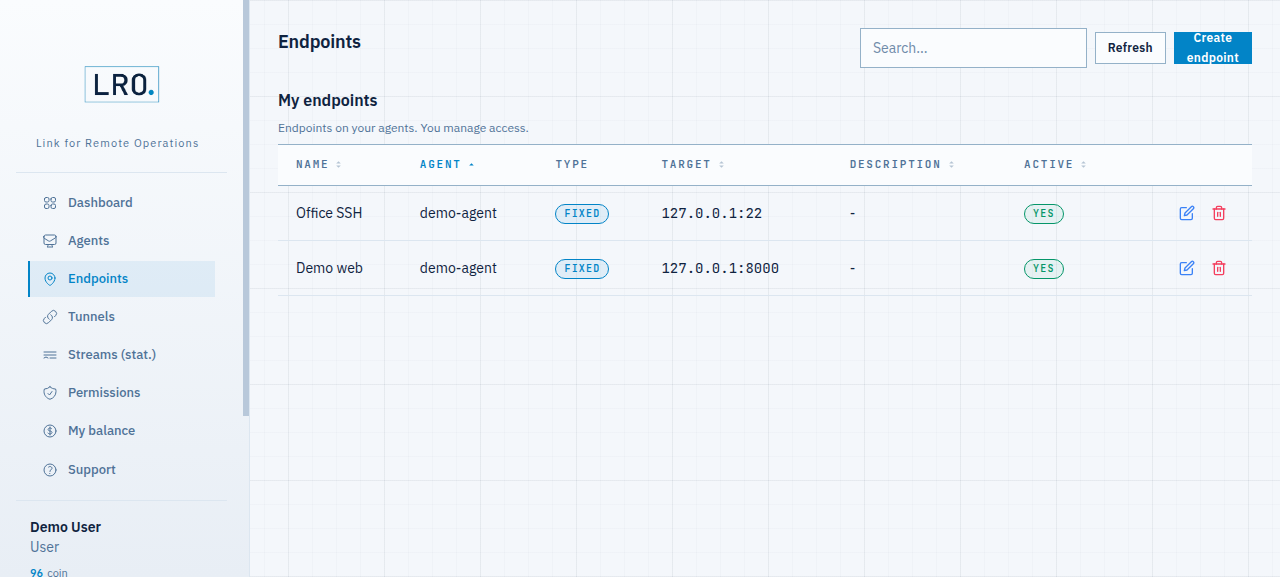
Fig 1. The SSH endpoint lives on the client agent — target 127.0.0.1:22. -
Open a tunnel from your machine
Tunnels → Add tunnel. Choose your laptop as the support agent, pick the Office SSH endpoint, and set a listen port — anything free locally, e.g.
2222. Create it; it goes Active in a moment.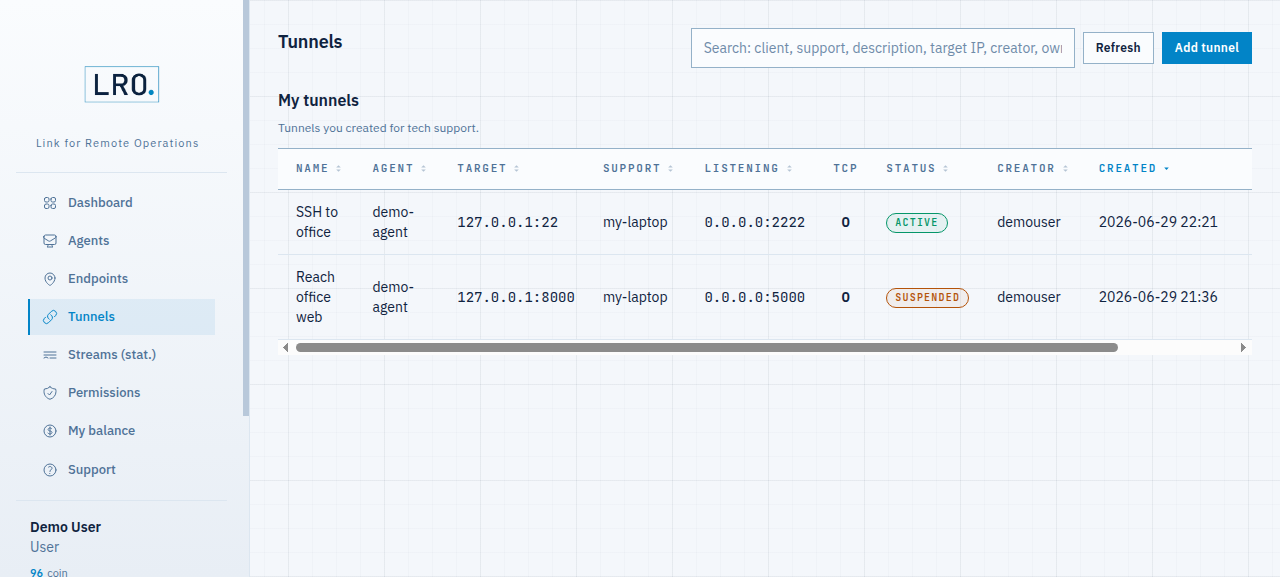
Fig 2. The active SSH tunnel — your machine listens on 2222 and forwards to the remote 127.0.0.1:22. -
SSH to the local port
On your laptop, SSH to the listen port. The connection lands on the remote machine’s sshd through the encrypted tunnel:
$ ssh user@127.0.0.1 -p 2222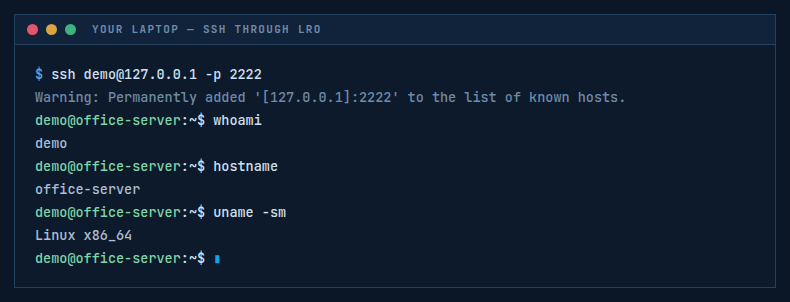
Fig 3. A real shell on the remote machine — over a port that only exists on your laptop. Everything that rides on SSH works the same way, pointed at the local port:
$ scp -P 2222 file.tar.gz user@127.0.0.1:/tmp/ $ sftp -P 2222 user@127.0.0.1 $ rsync -e 'ssh -p 2222' -a ./dir user@127.0.0.1:/srv/To avoid typing the port, add a host block to
~/.ssh/config:# ~/.ssh/config Host office HostName 127.0.0.1 Port 2222 User user… then just
ssh office.
Notes
- Both sides behind NAT — no problem. Each agent makes an outbound connection only; nothing is exposed to the internet.
- Lock it down — set Allowed addresses (ACL) on the tunnel to limit who on your machine can use the listener, and keep SSH key authentication on the remote host.
- Any TCP service — the same three steps reach RDP (3389), a database, or a web admin panel; only the target port changes.
Reach your machine without opening a single inbound port.
Create an account →